
Holiday markets are some of the busiest days of the year for food vendors. Crowds of people walk by your table, ready to treat themselves and pick up gifts. But most market sales end the moment the customer walks away. Unless they remember your name and look you up later, you may never see them again.
Pop-up Mode changes that. It lets you take payments straight from your iPhone, and every walk-up customer can become a subscriber who gets a text the next time your orders open.
Think of it as the gift that keeps on giving. A customer who buys a loaf from you at a market in November can come back for your Christmas drop, then become a regular at your weekly pickups.
What is Pop-up Mode?
Pop-up Mode is part of the Hotplate Portal iOS app, built for selling in person at markets, pop-ups and events. It's available on iPhone only. It has two tools:
Walk-up: take card payments with Tap to Pay on iPhone.
Pickup: look up and check in preorders, by scanning the customer's QR code or searching their name or order number.
It runs on the same app, payouts and customer list as your normal drops, so your in-person sales and online sales can finally live in the same place.
Turn walk-ups into subscribers
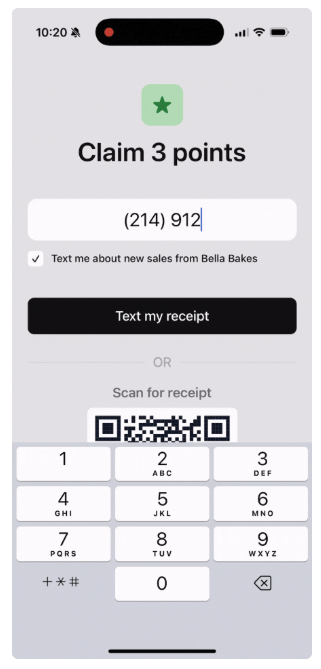
After a customer taps to pay, they can enter their phone number to get a text receipt. The box to subscribe to your drop texts is already checked, so with one step they're on your list. (If you've turned on loyalty, they'll see the points they earned too.)
Customers who skip the phone number still earn loyalty points on their card. If they come back with the same card and add their number later, those earlier points carry over. And if a customer has linked their number to their card before, Hotplate recognizes it and texts their receipt automatically.
Why this matters so much during the holidays: a single market day can put you in front of more new people than weeks of online drops. Every one of them who subscribes is someone who hears from you when your Thanksgiving or Christmas preorders open, instead of someone who has to remember your name.
For example, if 30 people at a Saturday market add their number, that's 30 new people getting a text the next time you drop.
What to say at your table
You don't need a pitch. A quick line while they're paying does the job:
"Pop your number in after you tap and I'll text you when my next menu drops."
"I only bake a few times a month. Subscribe and you'll be the first to know."
"My Christmas preorders open next week. Add your number and I'll send you the link."
"No app needed. You'll just get a text when orders open."
A small sign helps too: "Tap to pay, then add your number for first dibs on my next drop."
Keep every order in one place
No more tallying cash, cross-checking a second card app, or flipping through a notebook of preorders.
Walk-up sales show up in your Orders tab automatically, marked done, with order numbers that start with "T-".
Preorders picking up at the market are in the Pickup tab. Scan the QR code on the customer's order confirmation, or search by name or order number, then tap Mark Done.
Payments from Tap to Pay show up in your Payouts tab under Transaction History, alongside your online orders.
Leave the card reader at home
Pop-up Mode works straight from your iPhone. There's no separate card reader or terminal to buy, charge, pair or haul to the market. Customers can pay with contactless credit or debit cards, or with Apple Pay, Google Pay and Samsung Pay. Need to charge a flat amount? Tap Custom Amount.
That's one less thing to pack on an already busy market morning.
How to turn on Pop-up Mode
You'll set it up once in the Hotplate iOS app:
Download or update to the latest Hotplate Portal app from the App Store.
When you log in, tap Enable Pop-up Mode.
Allow camera access (for scanning QR codes) and location access (for taking payments), connect your Stripe account, and accept Apple's Tap to Pay terms.
After that, you can open Pop-up Mode three ways:
Tap Pop-up in the bar at the bottom of the screen.
In the Orders tab, tap the menu icon in the top right, then Pop-up mode.
Up to 2 hours before your pickups, tap Launch Pop-up Mode in the Orders tab.
For the full walkthrough, read our Pop-up Mode help article.
Your market-day checklist
Update the Hotplate app the night before.
Charge your phone.
Check that you'll have cell service at the market. Pop-up Mode needs a connection to take payments.
Favorite your best sellers so they're easy to find (tap and hold an item, then Add to favorites).
Set your tip presets under Settings > Checkout.
Print a sign inviting customers to subscribe.
FAQ
What do I need? An iPhone with the latest Hotplate Portal app. You do not need a physical card reader.
Does it work on Android? Not right now. Tap to Pay is only available on iPhone, through the Hotplate Portal iOS app.
What does it cost? There is no Hotplate fee on Tap to Pay orders. Stripe's standard processing fee of 2.9% + 30¢ applies. You cover it by default, or you can pass it to customers under Settings > Checkout.
Does it work offline? No. You'll need a cellular connection to take payments.
Can I give discounts? Not yet. Use Custom Amount to charge whatever you like.
Bring your market crowd home
This holiday season, every market is a chance to grow your list. Turn on Pop-up Mode before your next one.
Want the full walkthrough first? Read how Pop-up Mode works in the Help Center.
Getting ready for the season? Work through your Hotplate holiday checklist, or find more ideas in Holiday HQ.
